* Windows support is experimental. Zoom Workplace is required separately.
YOUR LANGUAGE DESKCONFIGURATION PREVIEW
Sunday conference
9 languages
One input channel per language17 → 25
↳ Your setup. Ready to recall.
01 / NAME YOUR SESSION→02 / CHOOSE YOUR LANGUAGES→03 / CHECK & LAUNCH
A SMALL TOOL FOR A BIG SETUP
Make the repetitive part repeatable.
Built around the practical work of multilingual event AV: reuse a named session, choose only the languages you need, and keep participant names and channel assignments together. No account for the launcher. No hosted meeting credentials.
START HERE / DOWNLOADS
Pick your platform.
Source version 2.4.3 Installer versions are listed separately.
↗ MACOSPrimary platform
For your Mac.
The direct-Python start command is the recommended route for the current source. Keep the downloaded folder together.
Test with two languages first. Automatic microphone-channel routing is macOS-only; Windows pinning and mini windows are unverified.
Zoom Workplace is not included. These are locally built, unsigned packages. Installer availability is not a compatibility guarantee.Verify SHA-256 checksums ↗
THE PRACTICAL GUIDE
From download to language desk.
Follow the steps in order. Try a small setup before your event.
01
Install. Open. Keep it local.
Download and extract the Mac source kit.
Install Python 3 if it is not already available. Development tests used Python 3.14.
Double-click Zoom Language Launcher.command. Keep the source files together and its Terminal window open.
Or open Terminal in the extracted folder:
python3 zoom_language_launcher.py
The optional .pkg installs a bundled app in Applications. It uses a different default data folder and permission identity.
Download and run the Windows x64 installer.
Open Zoom Language Launcher from the Start menu.
Try two clients before selecting all languages. Zoom may reuse an existing instance.
To run the source kit with Python instead:
py -3 zoom_language_launcher.py
The interface opens in your browser, but the launcher runs on your computer. Closing the tab does not stop it; use Quit in the launcher.
02
Set up a quiet arrival.
In Zoom’s join preferences, configure these before opening language clients. The launcher does not enforce them on a new computer.
Microphone muted when joining
Camera off when joining
Video preview before joining disabled
Automatic computer audio, if your setup needs it
Waiting rooms, authentication, and host admission can still require manual action. Check mute and camera status after joining.
03
Give the session a name.
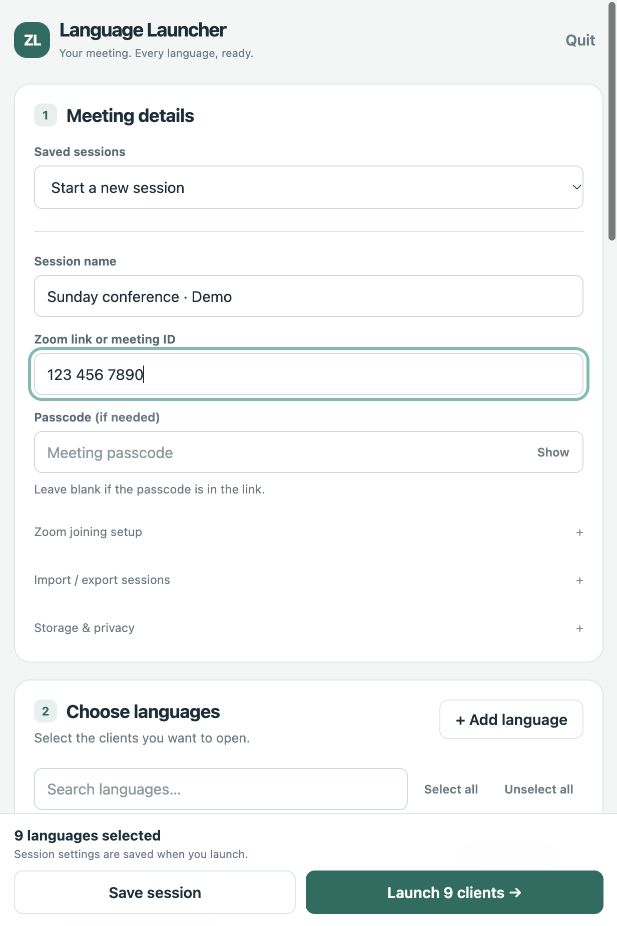
Enter a recognizable session name, your meeting link or ID, and its passcode. Select your languages, then edit the participant names where needed.
Actual launcher capture · fictional meeting details · click to enlarge
Use Unselect all to build a smaller setup. Save session stores it without joining a meeting. A matching session name updates the existing record.
More than nine languages?Choose + Add language, enter its language and participant name, then review its input channel. The initial channel for a new language is 1.
04
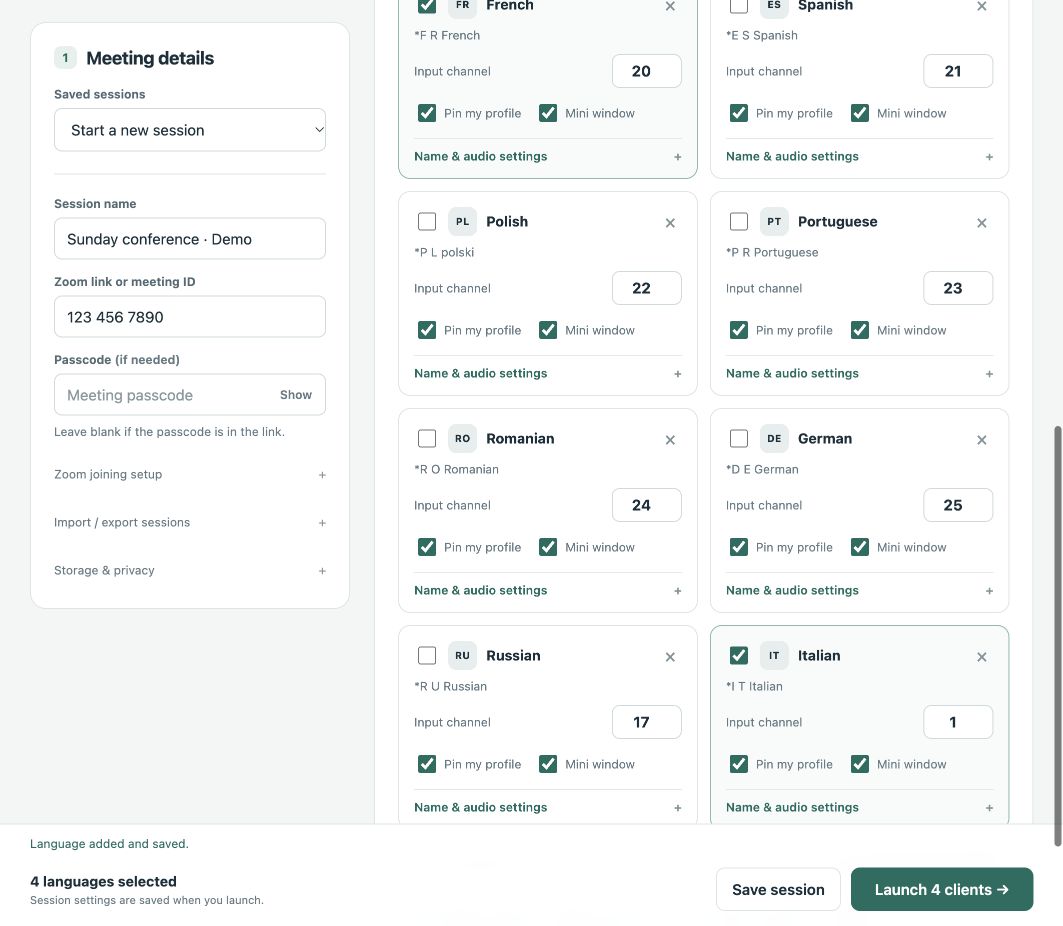
A channel for every language.
On macOS, Auto prefers Loopback Audio if that device exists. Choose the input and channel on each language card. Channels are numbered from 1.
Actual launcher capture · audio controls and language configuration
Input, not output. These channels feed Zoom microphones. They do not select interpretation audio or create Loopback routes. Configure the virtual device and verify a real signal separately.
Automatic routing requires macOS Accessibility permission for the process actually running the launcher. Restart after granting it. The two-channel test checks settings, not transmitted meeting audio.
05
Launch requests. Then verify.
Review Pin my profile and Mini window before launching; both default to enabled. These actions are experimental and can be disabled independently.
Start with two selected languages.
Launch and read the per-client result messages.
Confirm both clients actually joined with the intended names.
Check microphone sources, channels, mute state, and camera state.
Select interpretation languages manually inside Zoom as needed.
The host still assigns interpreter roles. A participant name does not grant permissions. A successful launch request does not confirm a connected participant.
SEE THE WORKFLOW
A little less reading. A little more seeing.
Captioned walkthroughs from real interface captures. No sound. No real meeting joined.
01 / SESSION SETUP · 16 SEC
Choose languages. Save a session.
Step-by-step screen captures showing meeting details, language selection, and saving. This is not a live joining demonstration.
02 / CUSTOMIZATION · 16 SEC
Add your next language.
Open the language dialog, enter an editable participant name, and return to your configuration.
Read video transcripts
Session setup: Name the session and enter meeting details. Unselect all languages. Select Chinese, Dutch, and French. Save the session for reuse.
Customization: Choose Add language. Enter Italian and the participant name *I T Italian. Add the language. Review input and channel settings before launching.
A FEW THINGS WORTH KNOWING
Before showtime.
Does it really work on Windows?
Windows support is experimental. The installer was built, but live multi-client joining, participant naming, pinning, and mini windows have not been validated on Windows. A previous test opened only one client. Do not assume that is resolved.
Where are my sessions saved?
macOS source runs save beside the script. Packaged Mac and Windows runs save in Documents/Zoom Language Launcher. The interface shows its current data folder. Import/export transfers sessions between folders or computers.
Are meeting passcodes encrypted?
No. Sessions and exported JSON contain plaintext passcodes. Keep them private and out of GitHub. The launcher interface runs on a local 127.0.0.1 server with a random access token.
Why do pinning or mini windows sometimes fail?
They depend on a joined client, the controls Zoom exposes, and the correct Accessibility permission. Audio failures no longer skip window actions, and pinning failures no longer prevent minimization. Live behavior is still unverified.
Can it arrange all floating windows in a grid?
Automatic desktop placement is not implemented. This launcher attempts a floating mini view; positioning those windows is a separate task.
All clients receive the same audio. What now?
Check the Loopback routing and actual per-client Zoom input selections. Shared Zoom settings may prevent independent selections from persisting. Read-back is not proof of independent transmitted audio; test real signals and configure manually if needed.
LOOK UNDER THE HOOD
Practical tools. Inspectable code.
Read the implementation, report an issue, or adapt the launcher to your conference workflow.